
Calendar links
Create a public page where customers pick a time with you, then share it or embed it on your website.
- Where
- Calendar → Calendar links
- Plan
- All plans
- Who
- Anyone in the workspace creates links for themselves. Owners and admins create and change links for anyone.
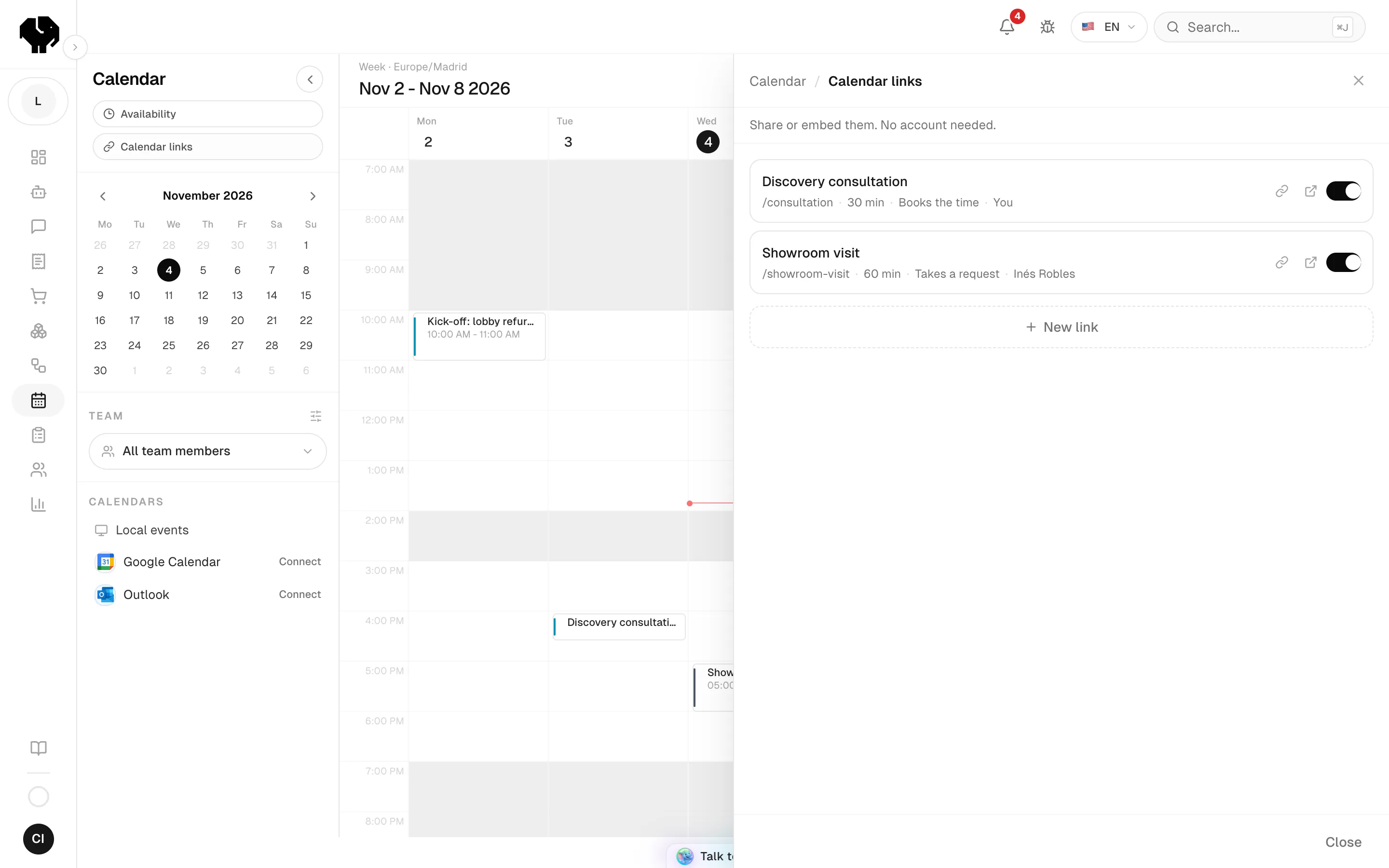
A calendar link is a public page that shows your real free times. Customers open it without an account and get an appointment or leave a request.
Create a link
Start a new link
Open Calendar → Calendar links and press New link.
Describe it
Fill Name, Description and Duration. The customer sees all three on the page.
Choose the address
In Calendar URL, write the end of the address with letters, numbers and hyphens. Each address can be used once in your workspace.
Choose who attends and where
Pick the Host and Where it happens.
Choose what the link does
In What the link does, pick Books the time or Takes a request, then press Create link. The link is live at once.
Link options
| Option | What it does |
|---|---|
| Name | The title of the page. |
| Description | What the customer should expect. Shown on the page. |
| Duration | How long each appointment lasts. |
| Calendar URL | The end of the page address. Letters, numbers and hyphens. |
| Host | The person who attends. Only owners and admins can pick someone else. |
| Where it happens | Where the appointment takes place. See the table below. |
| What the link does | Books the time or Takes a request. See Appointment or request. |
| Places per slot | Turn on Sell places (tables, classes, tours) to let several customers take the same time. See Sell places in a slot. |
Where it happens
| Option | What the customer gets |
|---|---|
| Google Meet | A Meet link created for each appointment. Needs Google Calendar connected. |
| Microsoft Teams | A Teams link created for each appointment. Needs Outlook connected. |
| A video link you already have | The link you paste, such as your usual Zoom room. |
| In person | The address you write. |
| You call the customer | You call them on the number they leave. |
| The customer calls you | The number you write. |
| Something else | The text you write. |
| Not specified | No place is shown. |
Appointment or request
| Books the time | Takes a request | |
|---|---|---|
| The customer picks | A day and a time | A day, and morning, afternoon or any time of day |
| Time blocked | Yes, at once | No, until you confirm |
| On your calendar | An appointment | Pending confirmation |
| Customer is told | Confirmed | That it is a request, not an appointment |
When AI agent booking is set to Requests only, every link takes requests and shows Following the workspace. To confirm a request, see Confirm or decline a request.
Sell places in a slot
For classes, tours, tables or group visits, one time can take several customers.
Turn on places
In the link, turn on Sell places (tables, classes, tours).
Set the places
In Places per slot, write how many people fit in one time, from 1 to 5,000.
Limit a group
In Most people per booking, write how many people one customer can bring at once, from 1 to 500. It cannot be higher than the places per slot. Leave it empty for one.
The customer first says how many people are coming. The page then shows only the times with room for all of them. Places do not block anyone's calendar on your team.
What the customer sees
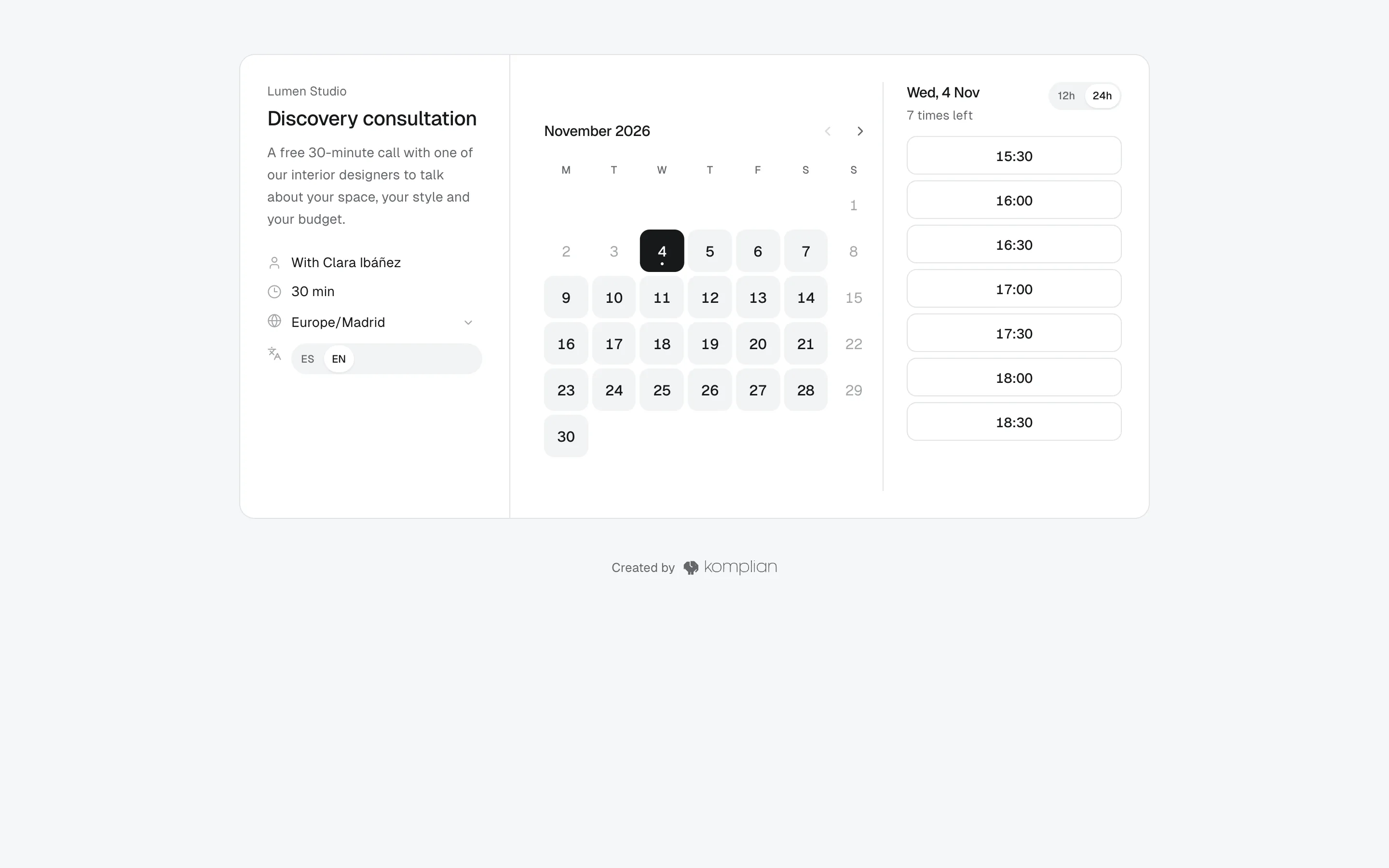
- Free times in their own time zone. They can change the time zone and the language on the page.
- A form for name, email, phone and an optional note.
- One live appointment or request with your business at a time. If they already have one, the page offers to cancel the previous one and create the new one.
- If two people pick the same time at once, the first one keeps it and the second picks again.
- A confirmation email, in the language they chose, with a link to move or cancel.
Share or pause a link
- Copy link copies the public address. Open opens the page.
- Turn Link is live off to pause the link. The list shows it as Paused.
- Delete link stops the address working. Appointments already made through it stay.
When Booking enabled is off in Availability, every link is closed.
Put it on your website
Open the embed options
On the link, open Embed on your site.
Choose a layout
Pick one of the four layouts in the table below and press Use this one.
Adjust the look
Choose the Calendar colour. For the floating button, also choose the Button text and the Corner.
Copy the code
Press Copy code and paste it into your website or email where the calendar should appear.
| Layout | What it does |
|---|---|
| Inline | The calendar sits inside your page and sizes itself. |
| Floating button | A button in a corner of every page opens the calendar. |
| On click | A button or link you already have opens the calendar over the page. |
| In an email | You pick up to 6 free times and paste them into a message as buttons. A link that takes requests gives a single button instead. |
© 2026 Komplian AI Solutions, S.L. All rights reserved.