
Tasks and notes
Create follow-ups with an owner and a date, hand tasks to Kai, and write notes your team can reply to and mention each other in.
- Where
- Contacts → Tasks
- Plan
- All plans
- Who
- Owners, admins and members create and edit tasks and notes. Owners and admins change the task statuses.
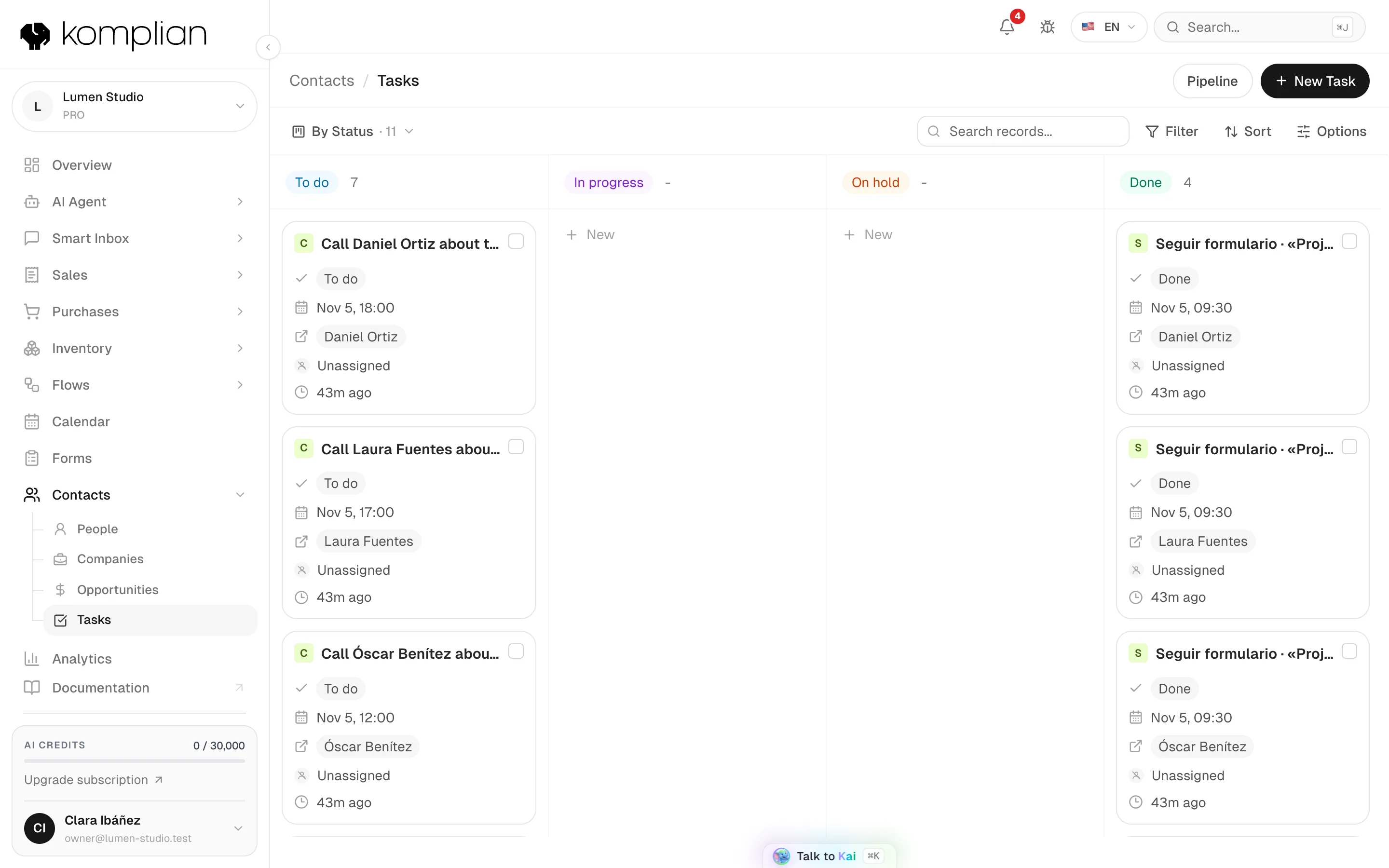
A task is a follow-up with an owner and a due date, usually linked to a person, a company or an opportunity. A note is something your team writes on a record.
Create a task
There are three ways:
| Where | How |
|---|---|
| Contacts → Tasks | Press New Task. |
| A note | Type /task and a title, for example /task Call Ana back. |
| Log activity on a record | Tick Create a follow-up task. See People and companies. |
Task fields
| Field | What it holds |
|---|---|
| Name | What has to be done. |
| Stage | The task's status, such as To do or Done. |
| Owner | Unassigned, a person on your team, or Kai (Komplian Intelligence). |
| Due date | When it is due. Overdue tasks show in red. |
| Related | The person, company or opportunity it belongs to. |
Tasks also show a kind: Task, Call, Meeting, Email or Message. The kind comes from how the task was created.
See your tasks
| View | What it shows |
|---|---|
| By Status | A board with one column per status. Drag a card to change its status. On a phone, use Move to…. |
| List | A table with Name, Stage, Owner, Due date, Related and Creation date. |
Filter by stage, including Overdue. The Urgent bar at the top of the app groups overdue and due tasks by kind.
Tasks with a due date that are not done also appear on the Calendar, on their day and time. A task never blocks time. Tasks without a date do not appear there.
Change the statuses
Komplian starts with four statuses: To do, In progress, On hold and Done. Owners and admins change them with the Pipeline button, as for opportunities.
| Meaning | Use it for |
|---|---|
| To do | Not started. |
| In progress | Being worked on. |
| On hold (waiting for a person) | Waiting for someone on your team. |
| Done | Finished. Every task pipeline needs one Done status. |
Give a task to Kai
Set the owner to Kai (Komplian Intelligence), or mention @Kai in a note on a person, an opportunity or a task (not a company). Kai opens a task it owns and answers in the note's thread. Kai works the task as the person who assigned it, using AI credits.
| Kai does on its own | Kai waits for your confirmation |
|---|---|
| Writes notes | Sends emails |
| Creates follow-up tasks | Sends replies |
| Logs activity | Creates appointments |
| Moves stages | Creates new records |
What waits is proposed in Kai's conversation. Press Open in Kai on the task to confirm or reject it. On the Calendar, Kai's tasks show Kai is on it. See Komplian Intelligence.
Automatic tasks
Komplian creates tasks for you when a customer asks to be called back, when an appointment request arrives, or from a flow or the AI agent. They keep their title.
Resolve closes them only with proof:
| Task | Resolves when |
|---|---|
| Reaching a person, such as a callback request | You reach them: a call, an email or a message on their record. |
| Appointment request | The request is confirmed or declined. |
Write notes
Notes go on any person, company, opportunity or task.
| Action | How |
|---|---|
| Start a thread | Press Reply under a note. |
| Mention a teammate | Type @ and pick them. They get a notification in the bell. |
| Hand work to Kai | Mention @Kai. See Give a task to Kai. |
Only the author of a note can edit or delete it.
See also
© 2026 Komplian AI Solutions, S.L. All rights reserved.