
Komplian Intelligence
Open Kai, give it work through notes and tasks, and decide which actions it may take without asking.
- Where
- Kai's panel → settings gear → Komplian Intelligence settings
- Plan
- All plans
Kai is Komplian Intelligence: an AI colleague for your team inside the app. It finds, summarises, drafts and proposes. It is not the AI agent, which talks to your customers under the name you give it.
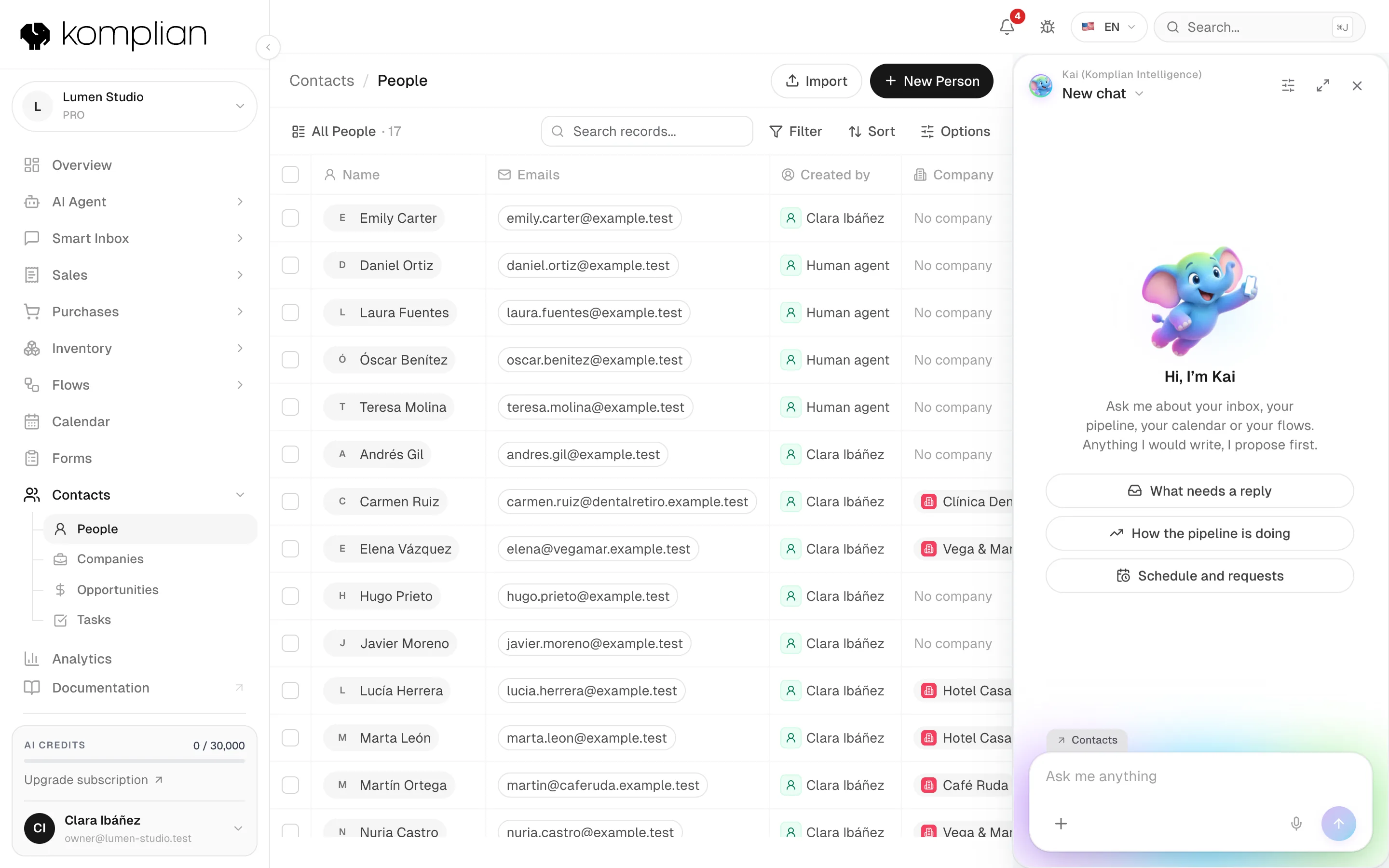
Open Kai
| Where | How |
|---|---|
| Overview | The Kai box on the page. |
| Any page | The side panel. |
| Anywhere | ⌘K or Ctrl K. |
| On a phone | Ask Intelligence in the bottom bar. |
Each module's page in the Komplian Store lists what Kai can do there.
Decide what Kai may do
Kai proposes a card and waits for you.
Default for anything customers see, that leaves Komplian or is hard to undo
Kai does it and tells you.
For internal actions that undo in one click
Kai never proposes it.
For anything you do not want Kai to touch
Open the settings
In Kai's panel, press the gear. Komplian Intelligence settings opens.
Open Permissions
The Permissions tab lists every action Kai can propose, grouped by area.
Choose a level for each action
Pick Ask, Always allow or Off. Your choice applies only to you.
The areas are Contacts, Opportunities, Tasks, Inbox and email, Calendar, Flows and templates, and Knowledge.
Actions that always ask
These actions are always Ask: anything your customer sees, that leaves Komplian, that speaks for the business, that creates records, that is hard to undo or that spends credits in bulk.
The team default
Owners and admins set For the whole team. By default, internal actions that undo with one click run without asking: completing tasks, moving stages, assigning or closing conversations, pausing flows. Each person can still choose Ask for themselves.
Check and undo what Kai did
The Activity tab lists everything Kai did. Each line says how it was approved:
| Label | Meaning |
|---|---|
| You confirmed it | You pressed confirm on Kai's card. |
| Allowed | It ran on its own, because the action is set to Always allow. |
| While answering | Kai did it while answering your request. |
A line shows Undo when the action can be reversed. Press it to undo the action.
Give Kai work in a note
Write a note
Open a person, an opportunity or a task and write a note. Companies are not supported.
Mention Kai
Type @ and pick Kai, listed first. Then write what you need.
Read the answer
Kai opens a task it owns, with your note as the title, and answers in the note's thread.
Assign Kai a task
Choose Kai (Komplian Intelligence) as the owner of a task. Kai starts at once and works as the person who assigned it, with that person's permissions.
| What the task needs | What Kai does |
|---|---|
| Notes, follow-up tasks, logged activity, moving a stage | Does it without a click. |
| Emails, replies, appointments, new records | Proposes it and waits. Open in Kai on the task opens the proposals. |
| Something Kai cannot finish | Hands the task back on hold, with a note that says why. |
Credits
Kai uses your plan's AI credits: the more text it reads and writes, the more credits, with at least one per request. It never uses the last 10% of your plan's monthly credits: those stay for the agent that answers your customers. Suggest a reply in Smart Inbox is also Kai and also uses credits.
See also
© 2026 Komplian AI Solutions, S.L. All rights reserved.