
Sales
Create and send quotes, turn them into orders, record deliveries and send delivery notes from your own mailbox.
- Where
- Sales → Quotes, Orders, Delivery notes
- Plan
- All plans
- Who
- Owners, admins and members create and send documents. Viewers read them.
Sales covers the path from an offer to the goods delivered: a quote, then an order, then one delivery note for each delivery. Each document belongs to a customer in Contacts and appears on their record, in the Sales tab.
Before you start
- Switch on the Sales module. See Sales, Purchases, Inventory.
- Add what you sell to the catalogue. Every line of a quote or order is a catalogue item.
- Connect a mailbox to send documents by email.
Create a quote
Open a new quote
Open Sales → Quotes and press New quote.
Choose the customer
Choose Company or Person and search Contacts. If the customer is not there, type their name and pick the option Create “…” in Contacts that shows it. The customer's email is filled in from the contact. You can change it.
Add the lines
Search the catalogue for each line. Set Qty, Unit price, Discount %, Tax % and Warehouse.
Set the terms
Set Valid until and the Currency. The Internal note is for your team.
Create it
Press Create quote. The quote starts as a Draft.
Only a draft can be edited. Edit replaces all the lines at once. The number stays.
Quote from a customer request
Requests that Smart Inbox or the AI agent captured wait in Sales → Quotes → Requests without an offer. A request carries what the customer asked for, any files they sent and, when given, an Event date.
Open the request
Open Requests without an offer and choose a request.
Check the prefilled data
The new quote takes the customer and context from the request. Check them before you create it.
Price it
Add catalogue lines and prices. What the customer wrote is context, never a price.
Send a quote
| Action | What it does |
|---|---|
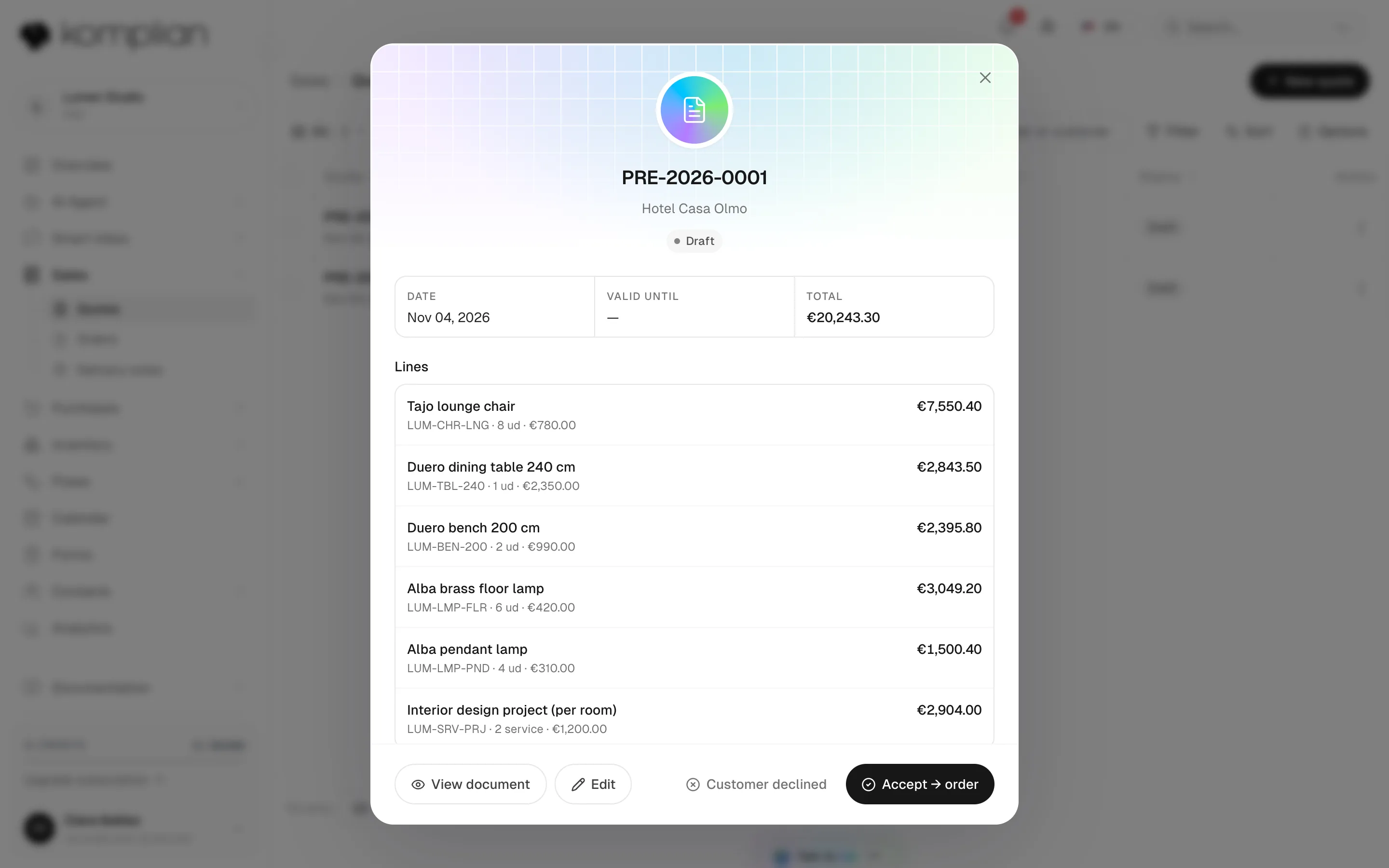
| View document | Shows exactly what the customer receives. |
| Print / PDF | Prints the quote or saves it as a PDF. |
| Send by email | Sends it from your connected mailbox to the Recipient, with an optional message. The quote shows Sent and the date. |
| Send again | Sends the same quote one more time. |
Close a quote
| Action | What happens |
|---|---|
| Accept → order | Creates a draft order with the same lines and prices. No stock is set aside until you confirm the order. The quote becomes Accepted. |
| Customer declined | Closes the quote as Declined. If it came from a request, the request is marked lost. You can create a new quote at any time. |
| Quote status | Meaning |
|---|---|
| Draft | Being prepared. The only status you can edit. |
| Sent | Sent to the customer. |
| Accepted | Turned into an order. |
| Declined | Closed. The customer said no. |
Create and deliver an order
Start an order with Sales → Orders → New order, or with Accept → order on a quote. A new order asks for the same customer and lines as a quote, plus an Expected delivery date.
Create the draft
Press Create draft. Only a draft can be edited.
Confirm it
Press Confirm. The stock the order needs is set aside for it. Nothing leaves the warehouse yet.
Record a delivery
Press Record delivery and enter what actually left or was done. You can deliver part of the order and the rest later: Remaining shows what is left.
Get the delivery note
Each delivery creates a delivery note. Physical items leave the warehouse as a Delivery movement. Services and digital items only record the work.
Cancel order releases the stock set aside. Deliveries already recorded are not reversed.
| Order status | Meaning |
|---|---|
| Draft | Being prepared. Nothing set aside. |
| Confirmed | Stock set aside. Nothing delivered yet. |
| Partly delivered | Some lines or units delivered. |
| Delivered | Everything delivered. |
| Cancelled | Stock released. |
The Delivery column of the list shows Not delivered, Partly delivered or Delivered.
When some stock belongs to your connected store, the order warns: "Some stock lives in another system. Check it with the provider before promising a date."
Delivery notes
A delivery note says exactly what left, and when. Sales → Delivery notes lists every one, with the counts Delivery notes, Sent and Not sent.
- Open an order and press View delivery notes to see that order's notes.
- Press New delivery note to record a delivery without an order. The button to save it is Record delivery.
- View document, Print / PDF and Send by email work as on quotes.
© 2026 Komplian AI Solutions, S.L. All rights reserved.