
A setup made for your business
How Komplian reads your website when the workspace is created, switches on the modules your business needs and orders the Overview steps by what it found.
- Where
- Overview
- Plan
- All plans
- Who
- Owners and admins see the setup checklist.
If you give your website when you sign up, Komplian reads it and prepares the workspace for your business: it switches on the modules you will need and asks you first for what helps most, naming what it saw. It only uses what your website says. If it finds nothing, the setup is the usual one.
What it looks for on your website
| What it finds | Example |
|---|---|
| Your shop platform and how many products it shows | Shopify, WooCommerce or PrestaShop |
| The tool your customers book with | Calendly, Booksy, Fresha, CoverManager, OpenTable |
| Your website chat or a WhatsApp button | Tidio, Tawk.to, Intercom, WhatsApp |
| The profiles your website links | Instagram, Facebook |
| Form or email marketing tools | Typeform, Jotform, Klaviyo, HubSpot |
| The sector your website declares | Dental clinic, salon, restaurant, hotel |
A standard WordPress contact form does not count: it is on almost every website and says nothing about your business.
Which modules it switches on
| If your website… | Switched on |
|---|---|
| Is a shop or shows a catalogue | Sales and Inventory. With a shop that can be connected, Purchases too. |
| Uses a booking tool, or your sector works with appointments or reservations | Calendar |
| Has a chat, WhatsApp, or links Instagram or Facebook | Smart Inbox |
| Uses a form tool | Forms |
| Uses an email marketing tool | Flows |
Rules that always hold:
- Only what your plan includes is switched on.
- Calls is never switched on by itself.
- It happens only once, and only if you have not changed the modules you chose at sign-up.
- It only adds modules: it never removes one you chose.
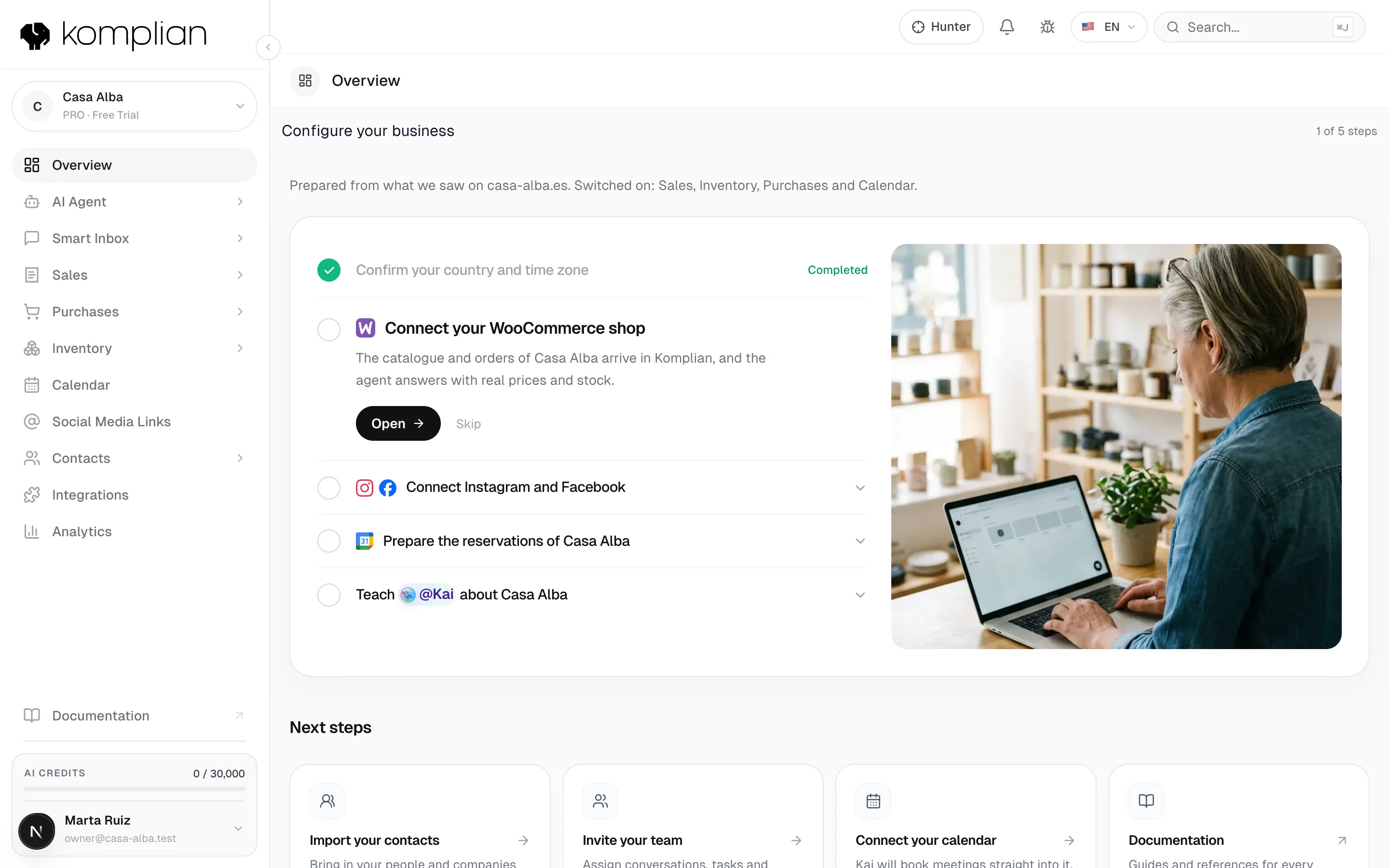
Under Configure your business you see what was switched on, for example: "Prepared from what we saw on your website. Switched on: Sales, Inventory and Calendar." You can switch any of them off in Settings → Modules. See Store and modules.
How the Overview steps change
The setup checklist always starts with your country and time zone. Then come the steps your website gives a reason for, in this order:
- Connecting your shop.
- Your catalogue, or your appointments and reservations.
- Your website chat or WhatsApp.
- The profiles your website links.
- What your sector suggests.
Each step says what was found and shows the official logo of what you connect. For example:
| What it saw | How the step reads |
|---|---|
| A Shopify shop with 244 products | Connect Shopify: we saw 244 products |
| Bookings with Booksy | Prepare your appointments: you use Booksy |
| Links to Instagram and Facebook | Connect Instagram and Facebook |
| A restaurant called Casa Alba | Prepare the reservations of Casa Alba |
If your website is a shop Komplian can connect, the step Connect your shop appears. It is ticked when the integration is connected. See Shopify and WooCommerce.
Komplian invents nothing. If your website does not show that you use a tool, the step does not name it. A step with no reason keeps its usual text.
© 2026 Komplian AI Solutions, S.L. All rights reserved.