
All integrations
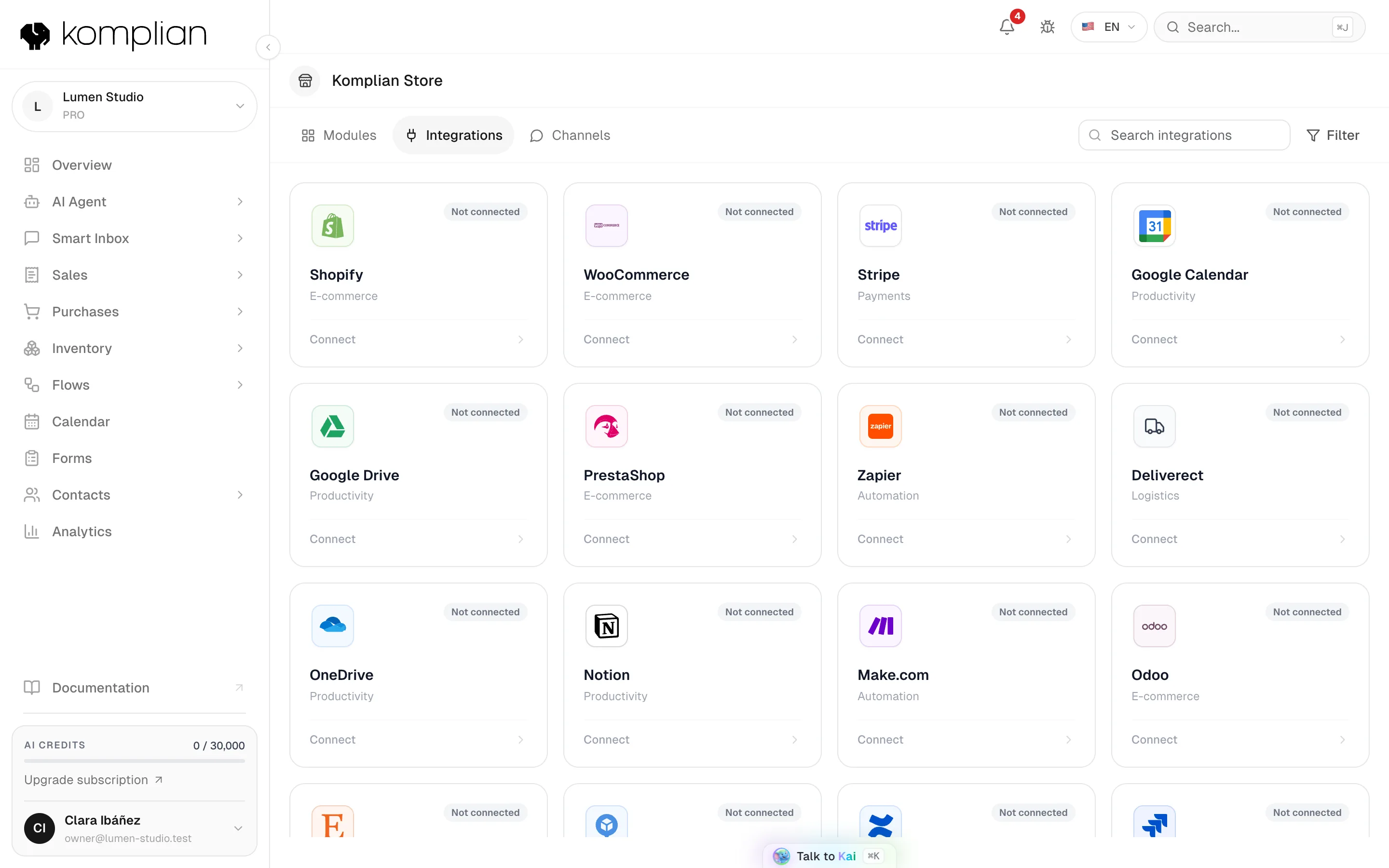
See every tool you can connect to Komplian, what each one brings, which plan it needs and how to connect or disconnect it.
- Where
- Account menu → Komplian Store → Integrations
- Plan
- All plans
- Who
- Owners and admins connect and disconnect integrations. Everyone sees their status.
An integration connects Komplian to a tool you already use: your store, your mailbox, your calendar, your documents or your automations. Messaging apps such as WhatsApp are channels, with their own tab: see All channels.
Connect an integration
Open the Store
Open the menu under your name and choose Komplian Store. Go to the Integrations tab.
Pick the tool
Choose the integration. Its page shows its status and its AI Skills: what the AI agent can do with it.
Press Connect
Press Connect and follow the steps of that tool. Some ask you to sign in to the tool and authorise Komplian. Others ask for a key you create in the tool.
Check the status
The status changes to Connected. Store integrations show Last synced and a Sync Now button.
What you can connect
| Group | Integrations | What they bring | Plan |
|---|---|---|---|
| E-commerce | Shopify, WooCommerce, PrestaShop, Etsy, Odoo | Products, stock and orders in your catalogue, for the agent and your flows. | All plans |
| Communication | Gmail, Outlook, custom mailbox (IMAP/SMTP) | Your mailbox inside Smart Inbox, and sending quotes and orders from your address. See Email. | All plans |
| Calendars | Google Calendar, Outlook | Busy times and appointments in your calendar. See Google Calendar and Outlook. | All plans |
| Knowledge | Notion, Google Drive, OneDrive, Confluence, Neon, Supabase, MongoDB | Documents and databases the agent answers from. See Knowledge. | Pro |
| Work tools | Jira Service Management | A destination for forms and flows. | All plans. Forms and flows need Growth. |
| Automation | Zapier, Make | Komplian events in your Zaps and scenarios, and leads created from them. See Zapier, Make and webhooks. | Pro |
| Logistics | AfterShip | Parcel tracking for the agent and for flows. | All plans |
Integrations marked Coming Soon are listed but cannot be connected yet.
Statuses
| Status | Meaning |
|---|---|
| Connected | Working. Data flows between the tool and Komplian. |
| Not connected | Never connected, or disconnected. |
| Reconnect | The tool stopped authorising Komplian, because access was revoked or expired. Nothing is read or sent until you connect it again. |
| Coming Soon | Not available yet. |
Choose what the agent can do
On an integration's page, AI Skills lists what the AI agent can do with that tool, for example search products or track orders. Switch each skill on or off.
Disconnect an integration
Open the integration and press Disconnect. Confirm in the dialog. The confirmation says it removes the synced data and switches off the AI Skills.
Limits
| Rule | Detail |
|---|---|
| Connected integrations | 5 on Starter, 10 on Growth, 20 on Pro, 50 on Enterprise. Channels do not count here. |
| One store at a time | Only one e-commerce platform can be connected. Disconnect it first to switch. |
| One mailbox provider at a time | Only one mailbox provider can be connected. Disconnect it first to switch. |
See also
© 2026 Komplian AI Solutions, S.L. All rights reserved.