
Message templates
Create, test and publish the WhatsApp, channel and email messages that flows send, and get WhatsApp templates approved by Meta.
- Where
- Flows → Templates
- Plan
- Growth and above
- Who
- Owners, admins and managers create templates.
A template is a reusable message with placeholders. Flows send messages only from published templates.
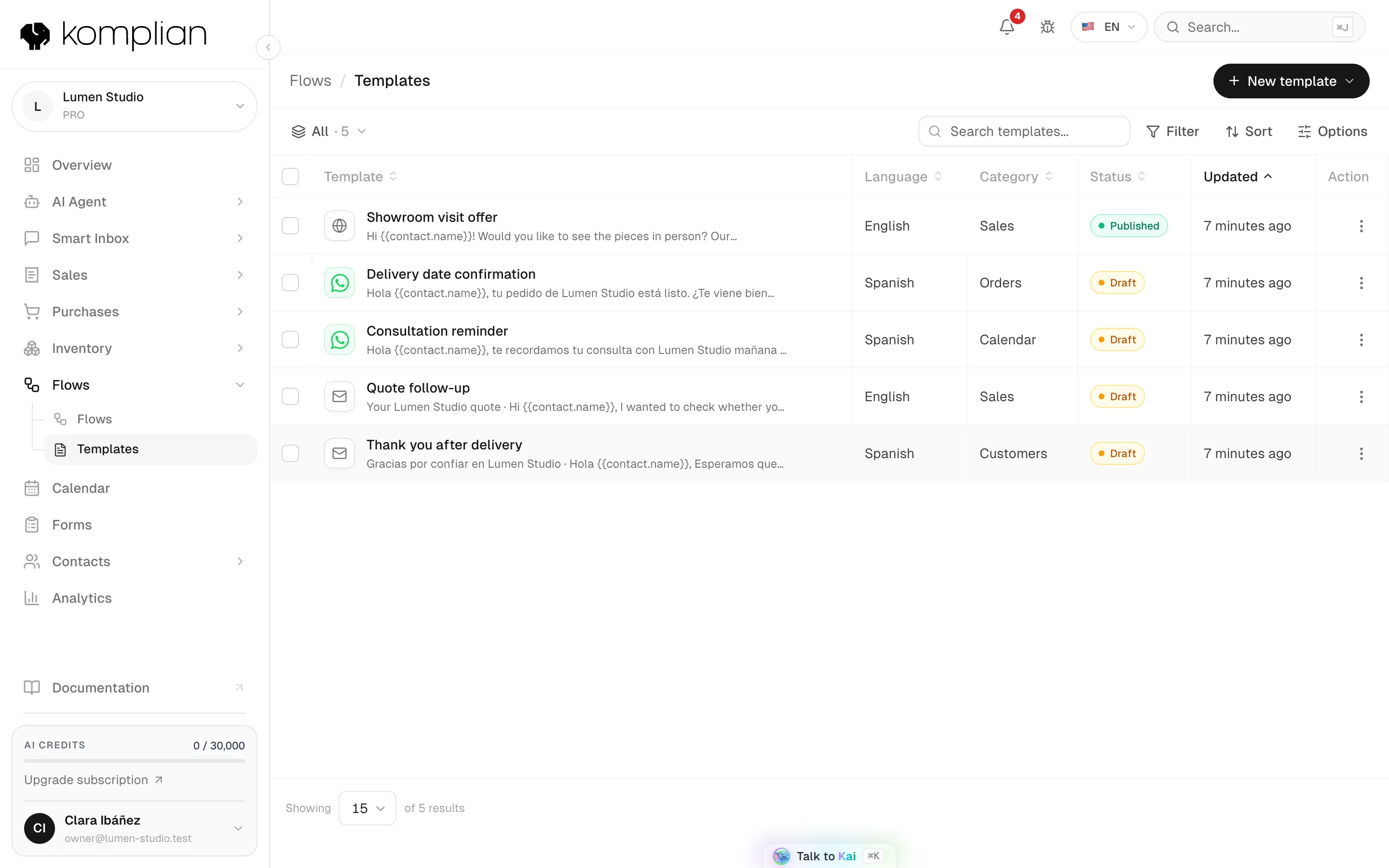
Find your templates
The page has two views:
- Messages: WhatsApp, Instagram, Messenger, Telegram, Web chat, Slack and Internal.
- Email.
The list shows Template, Language, Category, Status and Updated. Current and Archived switch between active and archived templates. Preset templates come with Komplian; Custom templates are yours.
Create a template
Start it
Press New template and pick the channel.
Name it
Fill the name, the Category and the Language: Spanish, English, Portuguese, French or German.
Write the content
Write the message. Put a variable where each contact's data goes, such as {{customer}}.
Save
Press Save. The template is a Draft until you publish it.
Preview and test
- Preview fills the variables with the Test variables you type and shows the result.
- Send test, on email templates, sends a real test to the address you write.
- Defaults JSON, on channel and email templates, sets the value each variable takes when the flow has none.
Publish and manage
| Action | What it does |
|---|---|
| Publish | Makes the template available in flows. Its status becomes Published. |
| Unpublish | Moves it back to Draft. |
| Duplicate | Creates a copy. |
| Archive | Removes it from flows. You can restore it anytime. A template used by active flows cannot be archived: Komplian shows In use by active flows and names those flows. |
| Restore | Brings an archived template back as a draft. |
| Delete | Removes an archived template for good. Only archived templates can be deleted. |
WhatsApp templates
WhatsApp only lets a business write first, or write after the 24-hour reply window, with a template approved by Meta.
Build a WhatsApp template
| Part | What it holds |
|---|---|
| Category | Marketing, Utility or Authentication. |
| Header | Optional text above the message. No variables. |
| Message | The body, with Bold, Italic and Strikethrough, and variables. |
| Footer | Optional small text below the message. No variables. |
| Buttons | Quick replies the customer taps, or CTAs that open a Website or call a Phone. A website button is Static or Dynamic (the end of the link changes on every send). |
Get it approved
Write it
Build the template and save it.
Submit for review
Press Submit for review. Meta can take up to 48 hours to answer. You need WhatsApp connected.
Check the status
The status shows what Meta decided. Once Approved, flows and conversational flows can send it.
| Meta status | Meaning |
|---|---|
| Not submitted | Not sent to Meta yet. |
| In review | Meta is reviewing it. |
| Approved | It can be sent. |
| Rejected | Meta refused it. Change it and submit it again. |
| Paused by Meta / Disabled by Meta | Meta stopped it from being sent. |
| In appeal | An appeal against a rejection is open. |
| Flagged by Meta | Meta flagged it. |
Approved templates also show their quality: High quality, Medium quality, Low quality or Quality pending.
These cannot be submitted to Meta from Komplian yet:
- carousels;
- image headers;
- the Authentication category;
- website buttons without a valid address.
Editing an approved template resets Meta's approval. It needs a new review before it can be sent again.
Email templates
An email template has a Subject, a Preheader (the line shown after the subject in the inbox) and a body built with blocks. Email HTML replaces the body with your own HTML.
You can draft and preview an email template at any time. Publishing it and Send test need a connected mailbox: Gmail, Outlook or IMAP/SMTP.
See also
© 2026 Komplian AI Solutions, S.L. All rights reserved.