
Persona and tone
Choose how the agent sounds and how long it answers, add your own rules, and correct what it knows about your business.
- Where
- AI Agent → Persona
- Plan
- All plans
- Who
- Owners and admins.
Persona sets how the agent says things: its style, the length of its answers and your own rules. The business profile on the same page sets what it knows about you.
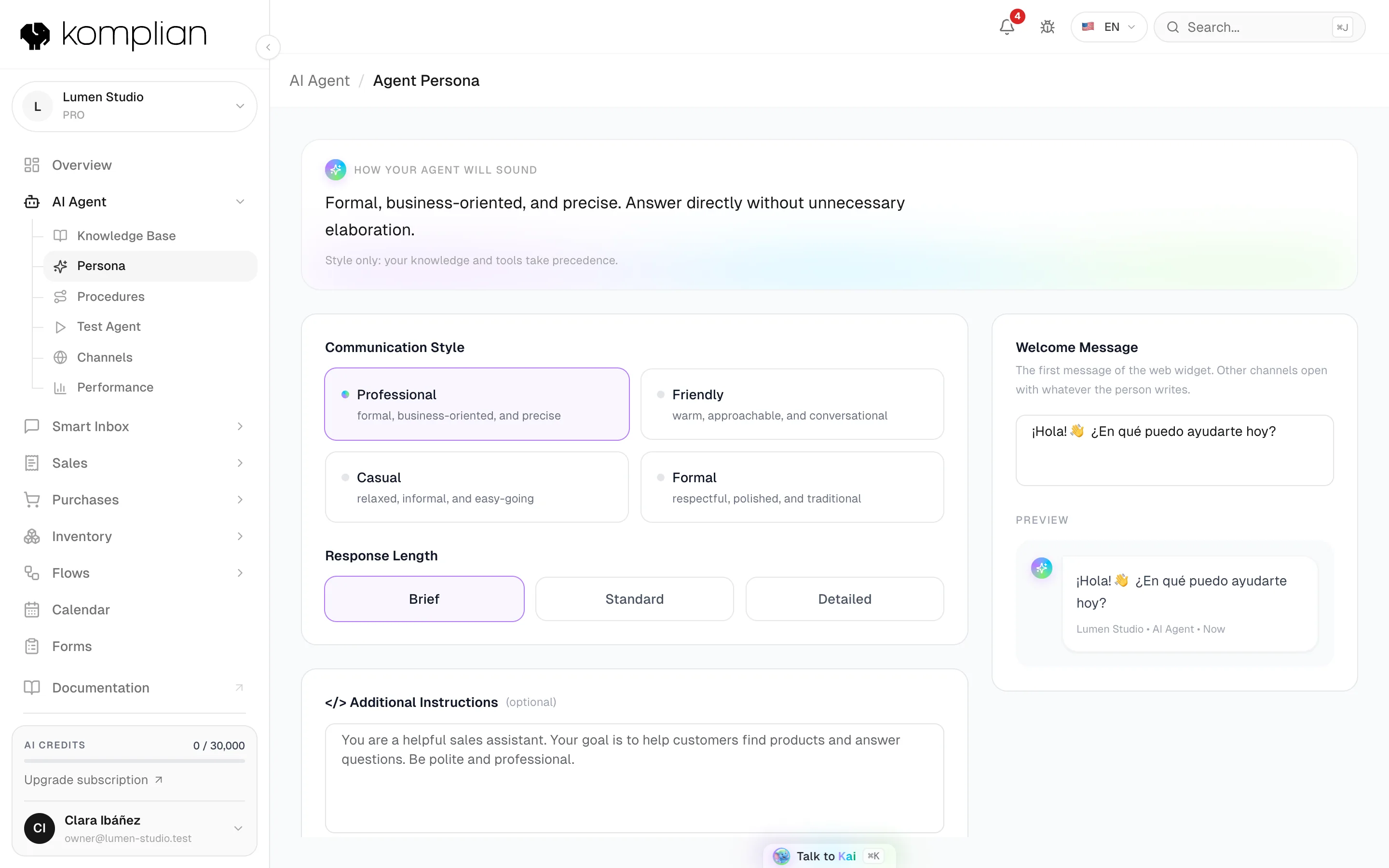
Change the style
Open Persona
Go to AI Agent → Persona. The page is titled Agent Persona.
Pick a style and a length
Choose a Communication Style and a Response Length. The card How your agent will sound shows the result in one sentence.
Add your rules
Write your rules in Additional Instructions. They are saved as written and sent to the agent with every answer.
Write the welcome message
Fill in Welcome Message, the first message of the web widget. Other channels start with what the customer writes.
Save
Press Save Now. Discard returns to the last saved version. The agent uses the change from its next answer.
The style changes only how the agent says things. Your knowledge and the agent's tools always take precedence.
Communication Style
| Option | How the agent writes |
|---|---|
| Professional | Formal, business-oriented and precise. |
| Friendly | Warm, approachable and conversational. |
| Casual | Relaxed, informal and easy-going. |
| Formal | Respectful, polished and traditional. |
Response Length
| Option | What you get |
|---|---|
| Brief | Direct answers without unnecessary elaboration. |
| Standard | Balanced answers with helpful context. |
| Detailed | Complete answers with full explanations. |
Additional Instructions
Write rules the agent must always follow. Keep each one short and concrete.
Always mention free shipping on orders over 100 €.
If someone asks about returns, send them to our returns page.
Never mention other brands.
Put facts in Knowledge, not here. Put step-by-step handling of one situation in a Procedure.
Correct the business profile
The Business profile is what the agent knows about your business. Komplian writes it from your website. It appears once your website has been read.
Press Edit
In the Business profile card, press Edit.
Change the sections
Correct any section. Put each fact in its own section: the agent reads them one by one.
Save and confirm
Press Save. In Confirm the profile, press Save again. The agent uses the profile from its next answer.
What you remove from the profile, the agent can no longer say.
| Section | What goes in it |
|---|---|
| What you do | Your business in a few sentences. |
| Products and services | What you sell. |
| Who you sell to | Your customers. |
| Brand voice | How your brand speaks. |
| Why they choose you | What sets you apart. |
| Shipping, returns and payment | Your conditions. |
| Contact and hours | How and when to reach you. |
| Where you operate | Countries, regions or cities you serve. |
When a section is empty, the agent says it will check with your team.
Name, avatar and logo
They are not on this page. Set Agent Display Name, Agent Avatar and Company Logo in the Content tab of Widget Studio. See Web chat.
See also
© 2026 Komplian AI Solutions, S.L. All rights reserved.